


How to: Turn color photo to b&w w/o losing your hue. (photoshop)


Thread Starter
Farts in the shower
Joined: Jun 2003
Posts: 15,559
Likes: 0
From: Colorado
 How to: Turn color photo to b&w w/o losing your hue. (photoshop)
Alright so I came across this great article in a magazine I picked up (Popular Photographer) and I thought you guys would appreciate this for your b&w photos and just in general another photoshop tip  .
.
There are 2 easy ways to turn a color image into b&w; switching to grayscale or desaturating...like most people you may be happy with your results or if you're a perfectionist be disappointed with them.
I think to the untrained eye most people cannot tell the difference between the 2 images but once you see a image done using this method there is a HUGE difference and I wish I did a before and after for you guys, so I ask if someone could do this so people can see the difference.
<u>A few notes about going from color to grayscale/desaturate:</U>
When you go from color to grayscale you're throwing out image data that gives you a lot of control. When you desaturate, colors of similar brightness turn into similar shades of gray; you are losing contrast and detail that you want to keep.
<u>Using and understanding RBG mode:</u>
An image in RBG mode (which mode you should be using as it offers the most accurate color representation) and separates the color band into 3 different colors; reds, blues and greens. Said channels of color hold A LOT of valuable information that you can use to adjust and perfect your b&w photo.
These 3 colors will dictate what colors turn into darker or lighter grays all the while maintaining the look or mood you desire for the photo. In the 2 methods in this write up, color information remains but PS shows the image in shades of gray. 1 method uses the channel mixer to affect the weight of each channel (reds/blues/greens) and the other uses 2 hue/saturate adjustment layers (more flexible but less precise).
<u>Tip:</u>
Since you'll be looking at a b&w image while making decisions based on the shots original color, it's helpful to save a color copy of the color version and keep it open for a reference point while you work. Or check each channel on its own by holding down CTRL +1 for red, CTRL +2 for blue and CTRL +3 for green.
<FONT SIZE="6"><u>Method 1: Channel mixing</u></FONT>
Go to layer > new adjustment layer > channel mixer and click ok. There is a slider for each channel: increase or decrease the amount of each to change your pictures look. If you would prefer to maintain the same exposure make sure all your numbers add up to 100%. Then check the box for "monochrome" and clicky p0w! Your image should now transform into a strong, high contrast b&w photo because the default settings in the mixer shows the red channel @ 100@ and keeps blue and green at 0. So you're looking at a version of your image as it would be if you shot it in b&w using a red filter. Blues (like the sky) appear darker and reds appear lighter.
<u>TWO: channel surfing</u>
If a red-filtered image wasn't what you're looking for then you need to experiment. Per the magazine they found if you use 80% red and 20% green makes what some call a "average b&w photo". ***While you are working remember that messing with a color channel works just like using a filter over b&w film: that color gets lighter and whatever in your picture doesn't contain that color gets darker. *** So if you have a lot of grass, for example, adjusting the green channel might lighten the foliage too much and lose detail.
<FONT SIZE="6"><u>Method 2: hue/saturation layers</u></FONT>
Adjustment layer 1:
Go to layer > new adjustment layer > hue/saturation. When the options box opens up name it "color" and click ok then click ok to ignore the box with the sliders; we'll touch on that in a minute. Next, in your layers palette pull down the blend mode menu to choose color.
Adjustment layer 2:
Go to layer > new adjustment layer > hue/saturation. Name this one "BW" and click ok. Now don't ignore the slider box, instead move the saturation slider all the way to the left to -100. Now your picture looks like a flat desaturated b&w, now just click ok and don't fret.
Adjustment layer 3:
Double click the layer thumbnail of the "color" layer that we made in the 1st step. That will bring the slider box again, now for the fun part; move the hue slider back and forth until you get the look you want. The effect, kind of like the channel mixer, makes your image look like it was shot with different filters.
And there you have it, 2 methods to improve your b&w photos and making them a little more "yours" all the while maintaining your contrast of your color photo. I apologize for the length of this but I wanted people to understand a couple things and why; but if you're reading this you must already be interested
 .
.
I copied a little bit from this article and I wish I could get the pictures to show you guys how much of an improvement the pictures are; guess a user or myself this week will have to put up some pictures for you guys . The article was well written by Debbie Grossman of popular photography.
A great great article as well: http://www.popphoto.com/articl...=1175

Modified by .ken at 12:01 AM 4/23/2005
.There are 2 easy ways to turn a color image into b&w; switching to grayscale or desaturating...like most people you may be happy with your results or if you're a perfectionist be disappointed with them.
I think to the untrained eye most people cannot tell the difference between the 2 images but once you see a image done using this method there is a HUGE difference and I wish I did a before and after for you guys, so I ask if someone could do this so people can see the difference.
<u>A few notes about going from color to grayscale/desaturate:</U>
When you go from color to grayscale you're throwing out image data that gives you a lot of control. When you desaturate, colors of similar brightness turn into similar shades of gray; you are losing contrast and detail that you want to keep.
<u>Using and understanding RBG mode:</u>
An image in RBG mode (which mode you should be using as it offers the most accurate color representation) and separates the color band into 3 different colors; reds, blues and greens. Said channels of color hold A LOT of valuable information that you can use to adjust and perfect your b&w photo.
These 3 colors will dictate what colors turn into darker or lighter grays all the while maintaining the look or mood you desire for the photo. In the 2 methods in this write up, color information remains but PS shows the image in shades of gray. 1 method uses the channel mixer to affect the weight of each channel (reds/blues/greens) and the other uses 2 hue/saturate adjustment layers (more flexible but less precise).
<u>Tip:</u>
Since you'll be looking at a b&w image while making decisions based on the shots original color, it's helpful to save a color copy of the color version and keep it open for a reference point while you work. Or check each channel on its own by holding down CTRL +1 for red, CTRL +2 for blue and CTRL +3 for green.
<FONT SIZE="6"><u>Method 1: Channel mixing</u></FONT>
Go to layer > new adjustment layer > channel mixer and click ok. There is a slider for each channel: increase or decrease the amount of each to change your pictures look. If you would prefer to maintain the same exposure make sure all your numbers add up to 100%. Then check the box for "monochrome" and clicky p0w! Your image should now transform into a strong, high contrast b&w photo because the default settings in the mixer shows the red channel @ 100@ and keeps blue and green at 0. So you're looking at a version of your image as it would be if you shot it in b&w using a red filter. Blues (like the sky) appear darker and reds appear lighter.
<u>TWO: channel surfing</u>
If a red-filtered image wasn't what you're looking for then you need to experiment. Per the magazine they found if you use 80% red and 20% green makes what some call a "average b&w photo". ***While you are working remember that messing with a color channel works just like using a filter over b&w film: that color gets lighter and whatever in your picture doesn't contain that color gets darker. *** So if you have a lot of grass, for example, adjusting the green channel might lighten the foliage too much and lose detail.
<FONT SIZE="6"><u>Method 2: hue/saturation layers</u></FONT>
Adjustment layer 1:
Go to layer > new adjustment layer > hue/saturation. When the options box opens up name it "color" and click ok then click ok to ignore the box with the sliders; we'll touch on that in a minute. Next, in your layers palette pull down the blend mode menu to choose color.
Adjustment layer 2:
Go to layer > new adjustment layer > hue/saturation. Name this one "BW" and click ok. Now don't ignore the slider box, instead move the saturation slider all the way to the left to -100. Now your picture looks like a flat desaturated b&w, now just click ok and don't fret.
Adjustment layer 3:
Double click the layer thumbnail of the "color" layer that we made in the 1st step. That will bring the slider box again, now for the fun part; move the hue slider back and forth until you get the look you want. The effect, kind of like the channel mixer, makes your image look like it was shot with different filters.
And there you have it, 2 methods to improve your b&w photos and making them a little more "yours" all the while maintaining your contrast of your color photo. I apologize for the length of this but I wanted people to understand a couple things and why; but if you're reading this you must already be interested
.I copied a little bit from this article and I wish I could get the pictures to show you guys how much of an improvement the pictures are; guess a user or myself this week will have to put up some pictures for you guys
. The article was well written by Debbie Grossman of popular photography.A great great article as well: http://www.popphoto.com/articl...=1175
Modified by .ken at 12:01 AM 4/23/2005


 .
.


Trending Topics
Thread Starter
Farts in the shower
Joined: Jun 2003
Posts: 15,559
Likes: 0
From: Colorado
Re: How to: Turn color photo to b&w w/o losing your hue. (BS 22)
bs22 and whoisdan: I would love for you guys to post up some pics so people can see....I will mess with this monday .
.


* B A N N E D *
Joined: Jan 2003
Posts: 16,716
Likes: 0
From: Sex, Money and Drugs
gave it a shot... i didnt notice much of a difference. my eye is "untrained" 
Channel mixer / red 100%

channel mixer / red 80% green 20%

desaturate

can anyone notice anything? or maybe i did it wrong
Channel mixer / red 100%
channel mixer / red 80% green 20%
desaturate
can anyone notice anything? or maybe i did it wrong
Thread Starter
Farts in the shower
Joined: Jun 2003
Posts: 15,559
Likes: 0
From: Colorado
Re: (d6)
Look at the reflection in your door from the 1st and 2nd pic to the last one...you can actually still see the road detail; also the grill retains its detail as well. Pretty ******* cool if you ask me and you kept a lot of detail (foglights, headlights, grill etc etc).
Were the directions/write up dead on or do I need to change or add anything?
Were the directions/write up dead on or do I need to change or add anything?
Thread Starter
Farts in the shower
Joined: Jun 2003
Posts: 15,559
Likes: 0
From: Colorado
Re: (d6)
Feel free to pm me to add things to the steps if you or anyone else find any .
I am always down to learn new photoshop stuff especially if it makes my photos better. Also make sure your monitor/photoshop is setup for rbg mode .
.I am always down to learn new photoshop stuff especially if it makes my photos better. Also make sure your monitor/photoshop is setup for rbg mode
.

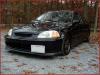

 Re: (d6)
<TABLE WIDTH="90%" CELLSPACING=0 CELLPADDING=0 ALIGN=CENTER><TR><TD>Quote, originally posted by d6 »</TD></TR><TR><TD CLASS="quote">
can anyone notice anything? or maybe i did it wrong</TD></TR></TABLE>
hahaha, what a riceR
can anyone notice anything? or maybe i did it wrong</TD></TR></TABLE>
hahaha, what a riceR


Honda-Tech Member
Joined: Nov 2002
Posts: 6,725
Likes: 0
From: GA
Re: (darkcvc)
For the car I used method one, the 80/20 style mentioned. For the two dogs, I tried out the 2nd style. 2nd seemed easier for the dog since he's already b and w.

it didn't come out the greatest, but fun i suppose. don't have the time to open back up PS and desaturate the supra

the dogs came out well


it didn't come out the greatest, but fun i suppose. don't have the time to open back up PS and desaturate the supra
the dogs came out well